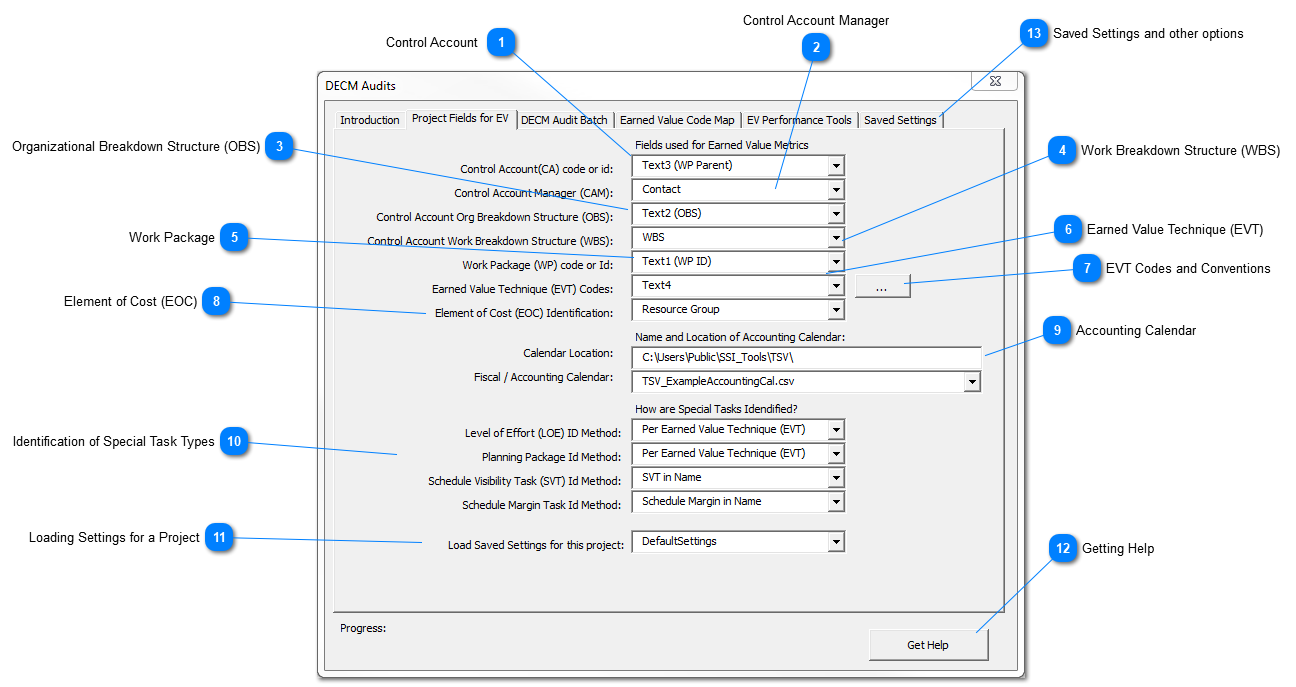
Enter a Text or Outline Code field in the project used for the Control Account.
You can use the same Text or Outline Code field for Control Account and Work Package (and Planning Package) as long as the code is punctuated with a delimiter (such as dots or dashes) that has its last term as the Work/Planning Package and everything before the last term as the Control Account. Using Punctuated Control Account and Work Package codes is explained below.
Using Punctuated Control Account & Work Package code or id:
Control Account (CA) code or id and Work Package (WP) code or id can use the same project field as long as the last term of a punctuated code represents the WP and all prior terms represent the CA.
For example: CA1.1.WP1 can be used for the CA and WP code by specifying punctuation using a dot (.). In the example CA1.1 will be the CA code or id and WP1 will be the WP code or id.
Enter a Text or Outline Code field in the project used for the CAM. A control account, with few exceptions, should have only one CAM according to DECM Test 05A102a
Enter a Text or Outline Code field in the project used for the OBS. A control account should have only one OBS according to DECM Test 05A103a
This is not to say you can't expand on the WBS associated with a Control Account. For example WBS 1.1.1 may be associated with a Control Account. The same control account may have Earned Value elements (Work Packages & Planning Packages) at a WBS level below 1.1.1 but all should tier up to 1.1.1. Be sure to identify the common Control Account WBS tier at the Work Package and Planning Package level for this data field.
Enter a Text or Outline Code field in the project used for the Work Packages and Planning Packages
You can use the same Text or Outline Code field for Control Account and Work Package (and Planning Package) as long as the code is punctuated with a delimiter (such as dots or dashes) that has its last term as the Work/Planning Package and everything before the last term as the Control Account. Using Punctuated Control Account and Work Package codes is explained below.
Using Punctuated Control Account & Work Package code or id:
Control Account (CA) code or id and Work Package (WP) code or id can use the same project field as long as the last term of a punctuated code represents the WP and all prior terms represent the CA.
For example: CA1.1.WP1 can be used for the CA and WP code by specifying punctuation using a dot (.). In the example CA1.1 will be the CA code or id and WP1 will be the WP code or id.
Enter a Text or Outline Code field in the project used for a Work Package's EVT. EVT refers to the method used to take performance when a Work Package is in-progress. DECM recognized these common EVTs:
LOE (Level of Effort)
0/100 (zero performance is earned until the Work Package has completed)
X/Y (X% is earned when you start or open the Work Package and the remainder, or Y% is not earned until the Work Package has completed
Percent Complete where the performance of an in-progress Work Package is objectively determined by the completion of steps used as Quantifiable Backup Data (QBD) to substantiate the percent claimed
Letter codes like A, H, C, F and K are used by popular EVMS tools for 0/100, X/Y, Percent Complete, Level of Effort and Planning Packages. Other tools allow you to enter a code or convention of your choice. If you use more than one code or convention, separate each with a comma like this - 27/75, 50/50, 60/40
Enter the codes and conventions used on your project using the Earned Value Code Map
Enter the project field from the Resource sheet used to idenfity your Element of Cost for each resource assigned to a task. You can't use a task field for EOC since this value must be associated with a particular resource assigned to a task. The resource sheet in Microsoft Project has fields named Code, Group, Type (which is limited to Work and Material) and Text1 - Text30 which can be used for EOC.
Examples of EOCs are Labor, Materials, Subcontract, Travel and other direct cost elements you may have on a project.
Browse to the system location of a file that contains three columns defining your accounting periods where the first column is the period label, the second column is the period start and the third column is the period end date.
This file should not have headings and should be in the format shown below. You can make this file using Excel, but it must be saved as a Comma Separated Values file (.csv) and its name must be preceeded by "TSV_". SSI Tools comes with an example of this file in the SSI Tools installation location at: \SSI_Tools\TSV\TSV_ExampleAccountingCal.csv. The example has a fourth optional column for Hours in the Period but this column is not needed for DECM. These file are used for all Time Scaled Values reporting in SSI Tools, so once you create one calendar file you can use it for many SSI Tools features and reports.
Example of an accounting calendar file with period Label, Start Date and End Data. This file must be saved as a Comma Separated Values file (.csv) and its name must be preceeded by "TSV_".
TSV_MyCal.csv is an example of a file name you can use for your project - just replace MyCal with any text you like for your project.
Use the drop-down fields to show how you identify tasks used for Level of Effort, Planning Packages, Schedule Visibility and Schedule Margin. If you use an option that ends with "...in Name", you can replace the text preceeding "in Name" with any text you like. For example, you can use "LOE in Name" to identify Level of Effort tasks or you can replace "LOE" with "Lvl of Effort" if you like. Pick the option that fits your project's conventions but be consistent throughout the project.
Save or recall a project's settings using this tab. Additionally, you can set a value for "High Float" and you can set the start date of the next Rolling Wave using this form